Streamlining your document creation process can dramatically boost your productivity, and learning how to use templates in Word 2010 is one of the most effective ways to achieve this. Instead of starting from a blank page every time you need to create a letter, resume, report, or flyer, you can leverage pre-designed layouts that ensure consistency and professionalism. Templates are the unsung heroes of word processing, providing a solid foundation of formatting, structure, and even placeholder content, allowing you to focus on what truly matters: the information you need to convey.
A template in Microsoft Word is essentially a blueprint for a document. It's a special type of file (with a .dotx extension) that stores formatting information such as fonts, margins, styles, headers, and footers. When you create a new document based on a template, Word opens a copy of that blueprint, leaving the original template file untouched and ready for its next use. This simple yet powerful mechanism is the key to creating standardized documents quickly and efficiently, whether you're managing company-wide branding or simply want your personal correspondence to have a polished, uniform look.
This comprehensive guide will walk you through every aspect of using templates in Microsoft Word 2010. We will explore how to find and utilize the wide array of templates that come pre-installed with the software, as well as how to tap into the vast online library provided by Microsoft. Beyond just using what's available, you'll learn the valuable skill of creating your own custom templates from scratch, tailoring them to your specific needs. By mastering these techniques, you'll transform the way you work with Word, saving countless hours and elevating the quality of your documents.
Understanding the Power of Word 2010 Templates
Before diving into the practical steps, it's important to grasp what a template is and why it's such a fundamental feature of Word. Many users interact with documents daily but may not fully appreciate the distinction between a standard document file and a template file, a difference that is key to unlocking efficiency.
A standard Word document is saved with a .docx extension. This file contains your text, images, and formatting. A Word template, on the other hand, is saved with a .dotx extension (or .dotm if it contains macros). The critical difference is in their behavior. When you double-click a .docx file, you open that exact file for editing. When you double-click or select a .dotx template file to create a new document, Word generates a brand-new, untitled .docx document based on the template's design, preserving the original .dotx file in its pristine state.
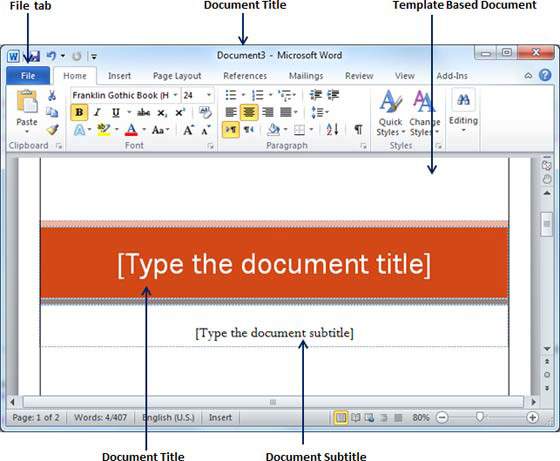
The benefits of adopting a template-based workflow are significant:
* Consistency: Templates ensure that every document of a particular type—be it a company memo, a project proposal, or a client invoice—adheres to the same formatting and branding guidelines. This is crucial for maintaining a professional image.
* Time-Saving: By having the layout, fonts, colors, and even boilerplate text already in place, you eliminate the repetitive setup tasks associated with creating a document from scratch. You can get straight to writing.
* Error Reduction: Templates can include pre-set fields, tables, and instructional placeholder text, which helps prevent users from forgetting to include essential information.
* Professionalism: Using well-designed templates gives your documents a polished and structured appearance that a hastily formatted blank document often lacks.
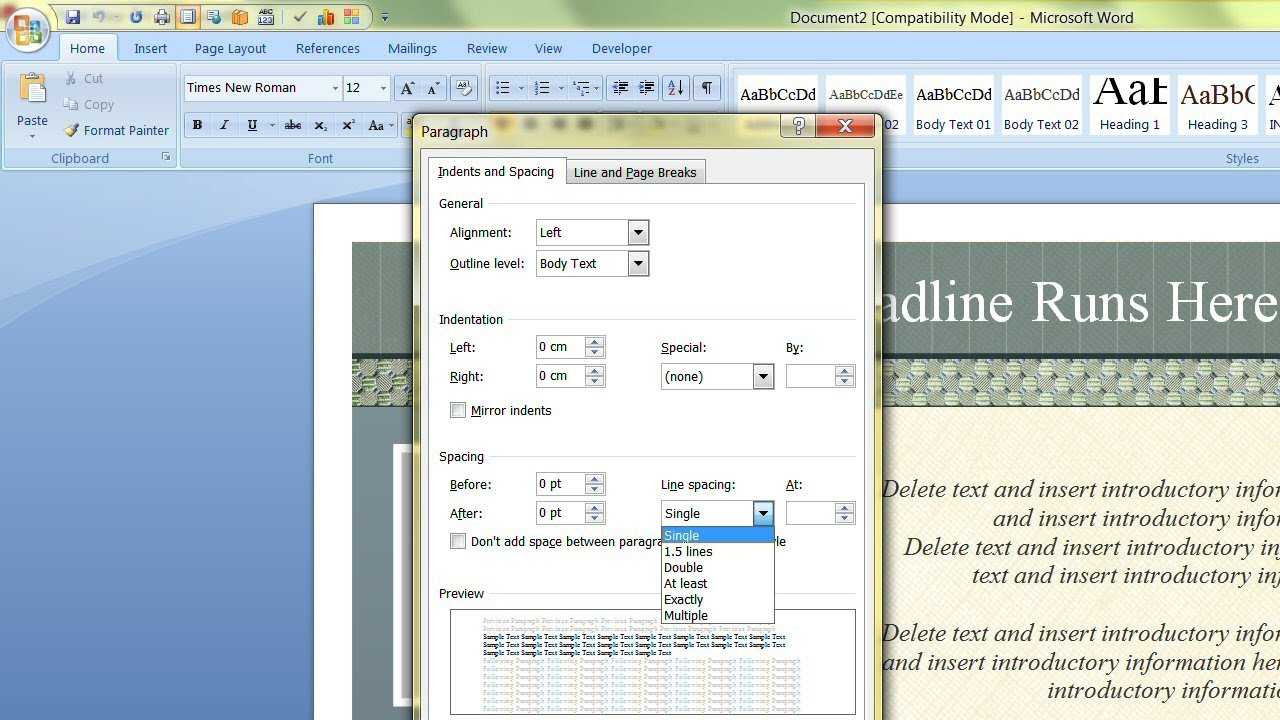
Accessing and Using Built-in Templates
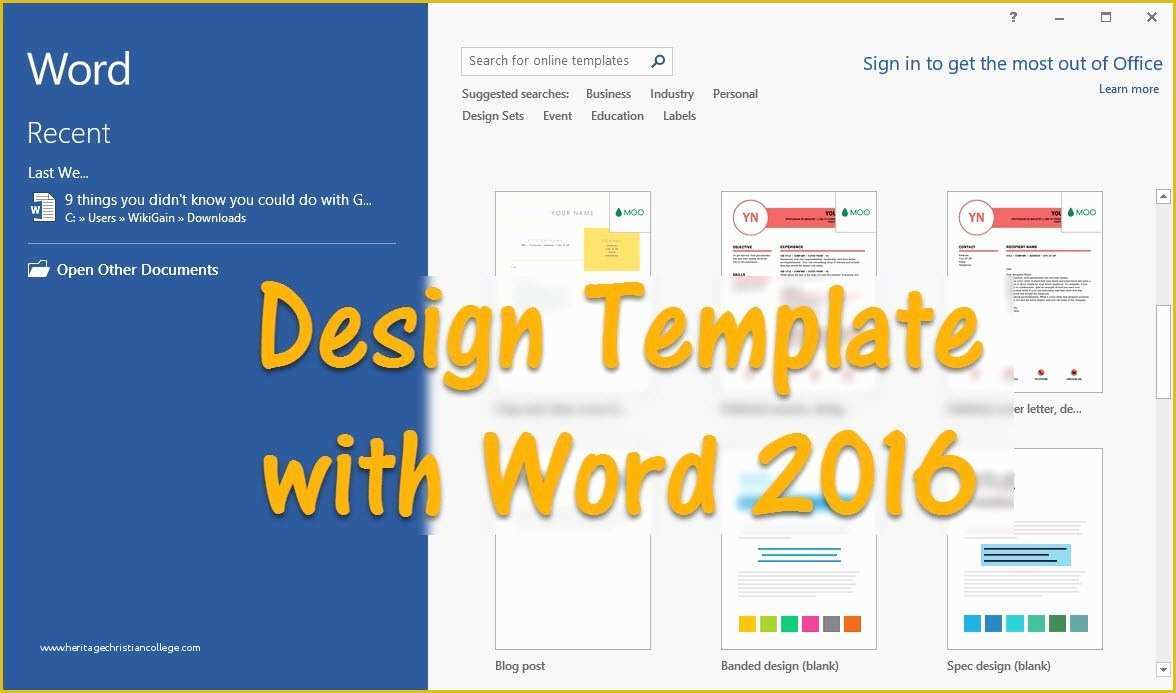
Microsoft Word 2010 comes equipped with a useful collection of pre-installed templates, often referred to as "Sample Templates." These cover a range of common document types and are the perfect starting point for most users.
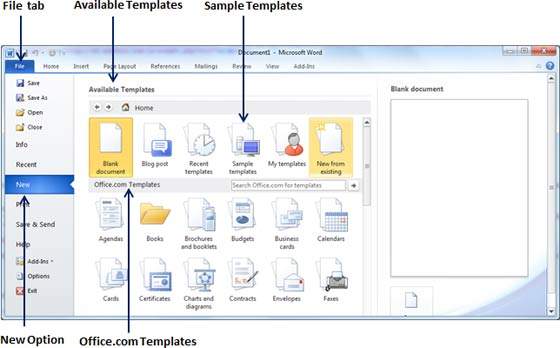
Step-by-Step Guide to Finding Templates
Finding and using these built-in templates is a straightforward process accessible directly from the Word interface.

- Open Microsoft Word 2010.
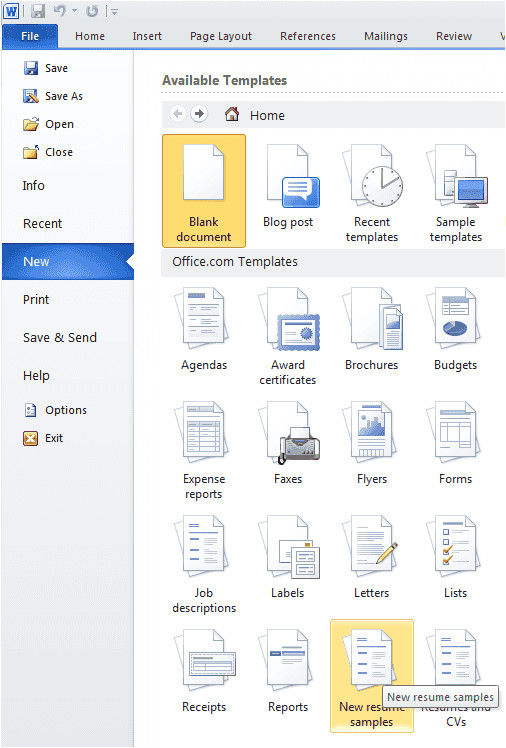
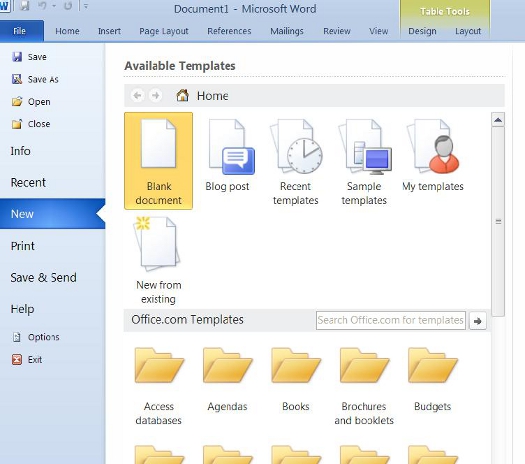
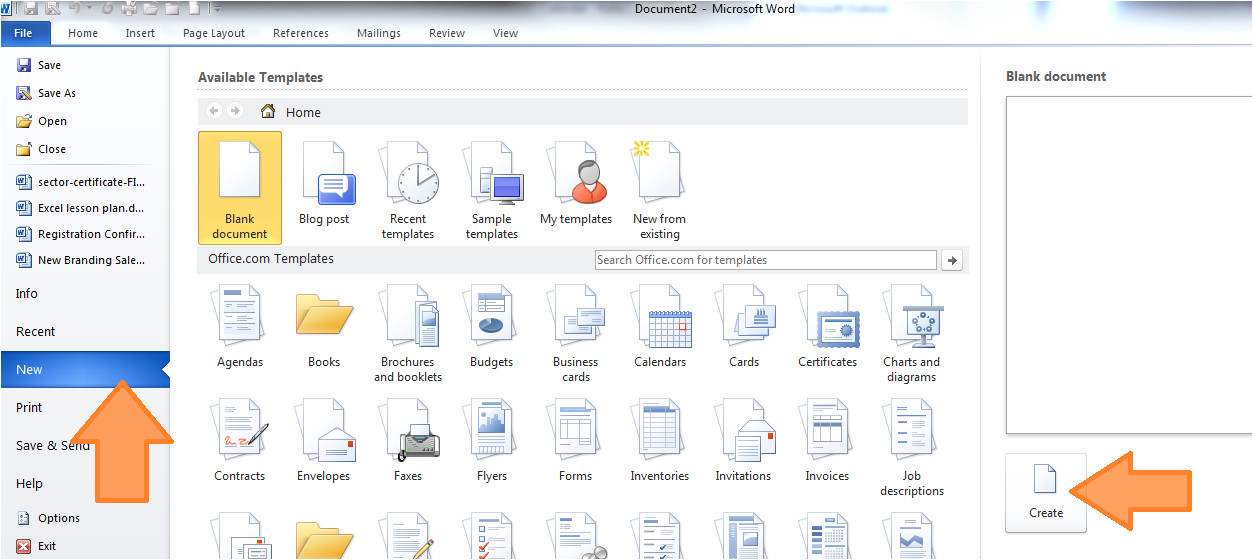
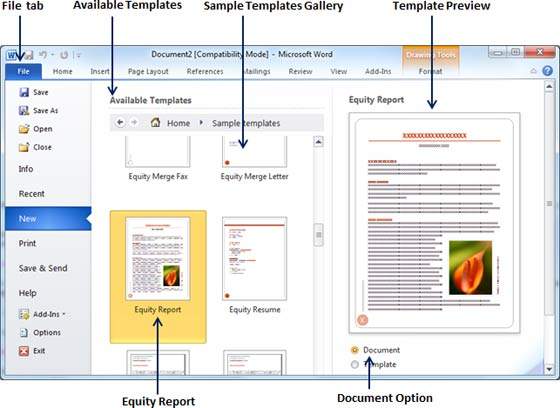
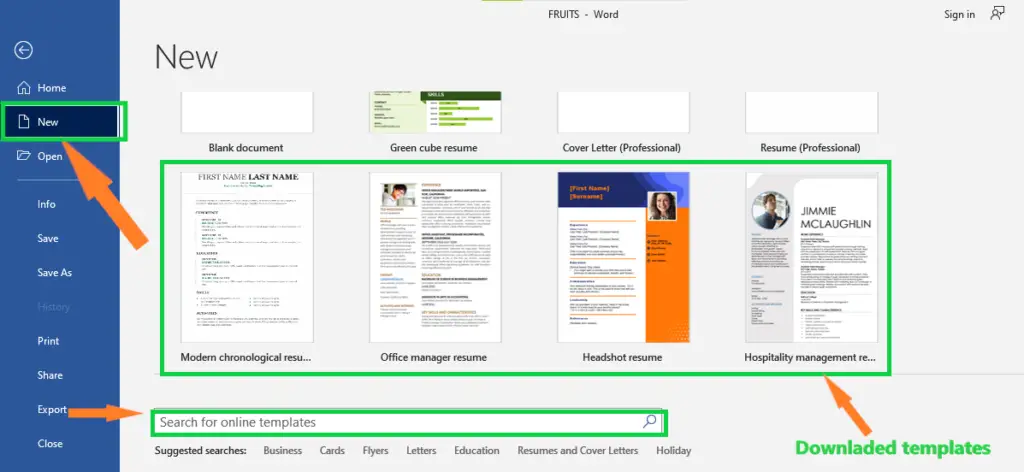
- Click on the File tab in the top-left corner to open the Backstage view.
- In the left-hand menu, select New.
- This will bring you to the Available Templates screen. In the central pane, under the "Home" section, click on Sample Templates.
You will now see a gallery of icons representing various templates, such as "Adjacency letter," "Equity resume," "Median report," and more. These are professionally designed layouts ready for immediate use. To select one, simply click on its icon. A preview of the template will appear in the right-hand pane. Once you've found one you like, ensure the "Document" option is selected under "Create New" and then click the Create button.

Working with a Template-Based Document
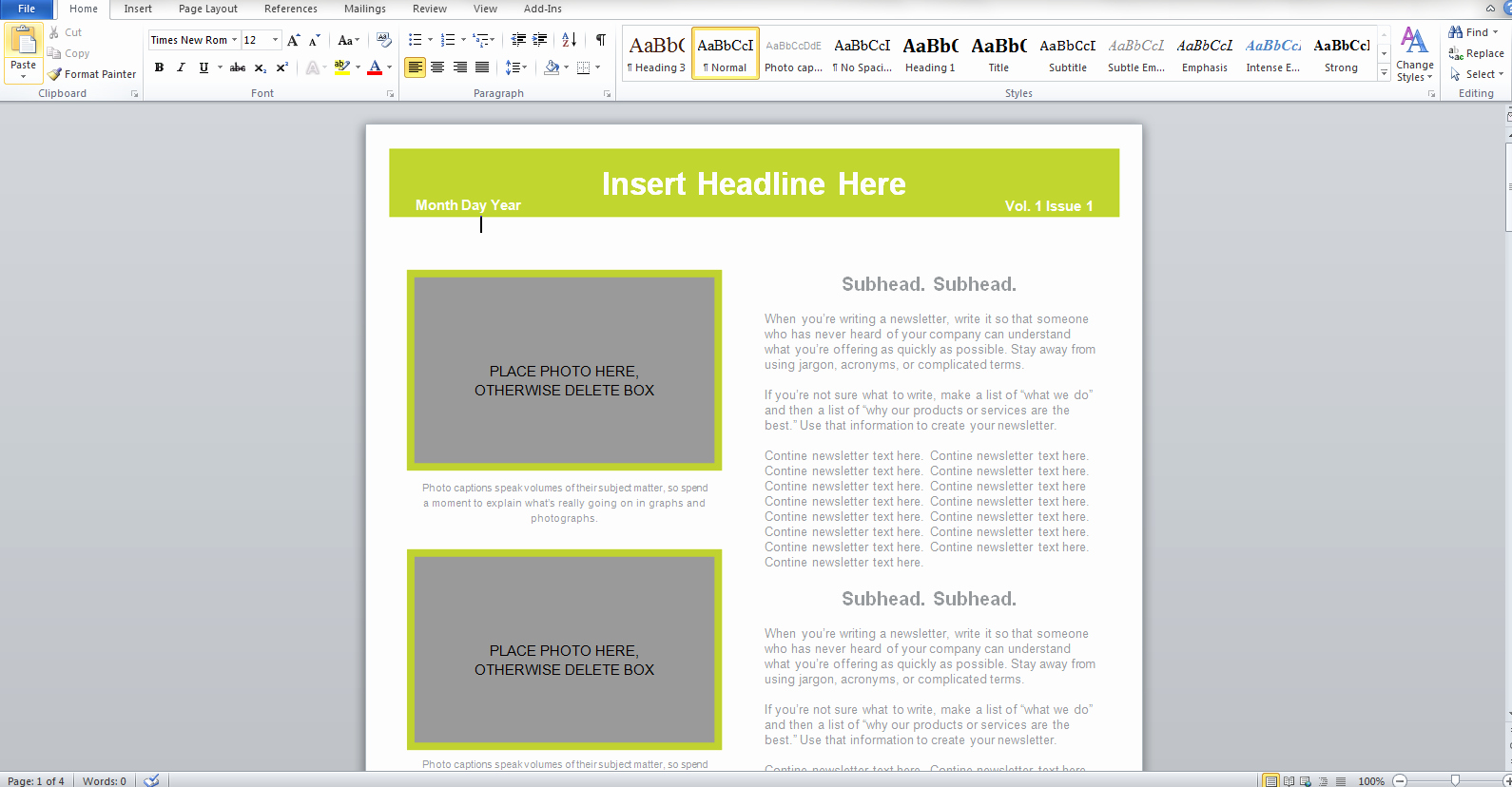
After you click "Create," Word will instantly open a new, untitled document that looks exactly like the template preview. You'll notice that it is filled with placeholder text, often in Latin (Lorem Ipsum) or with clear instructions like "[Click here and type your name]".
Your task is simply to click on these placeholder sections and replace them with your own content. All the formatting—including fonts, text sizes, colors, line spacing, and paragraph styles—is already applied. You don't have to worry about setting up margins or designing a header; the template has done all the heavy lifting for you. Once you have finished adding your content, save the file as you normally would by going to File > Save As. It will be saved as a standard .docx document, completely separate from the original template.
Finding and Using Online Templates from Office.com
If the built-in sample templates don't meet your needs, Word 2010 offers a seamless connection to a much larger online repository of templates hosted on Office.com. This expands your options exponentially, giving you access to thousands of templates for virtually any purpose imaginable.
Searching for Online Templates
Accessing these online templates is just as easy as finding the built-in ones.
- Navigate back to the File > New screen.
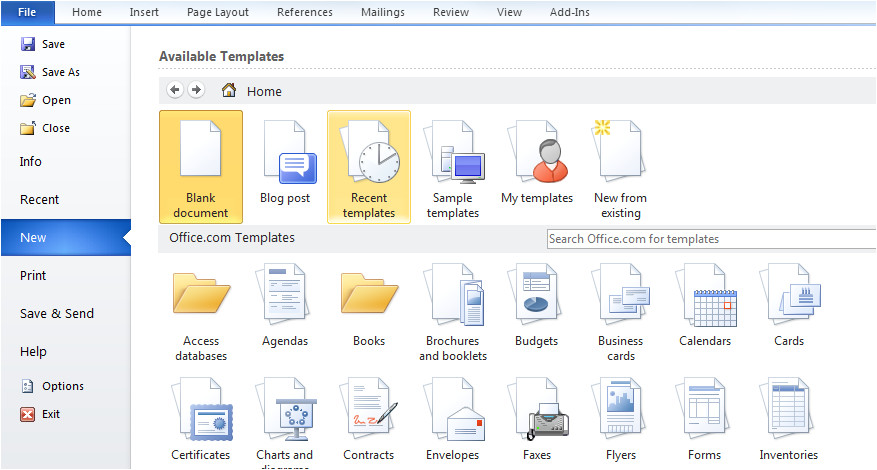
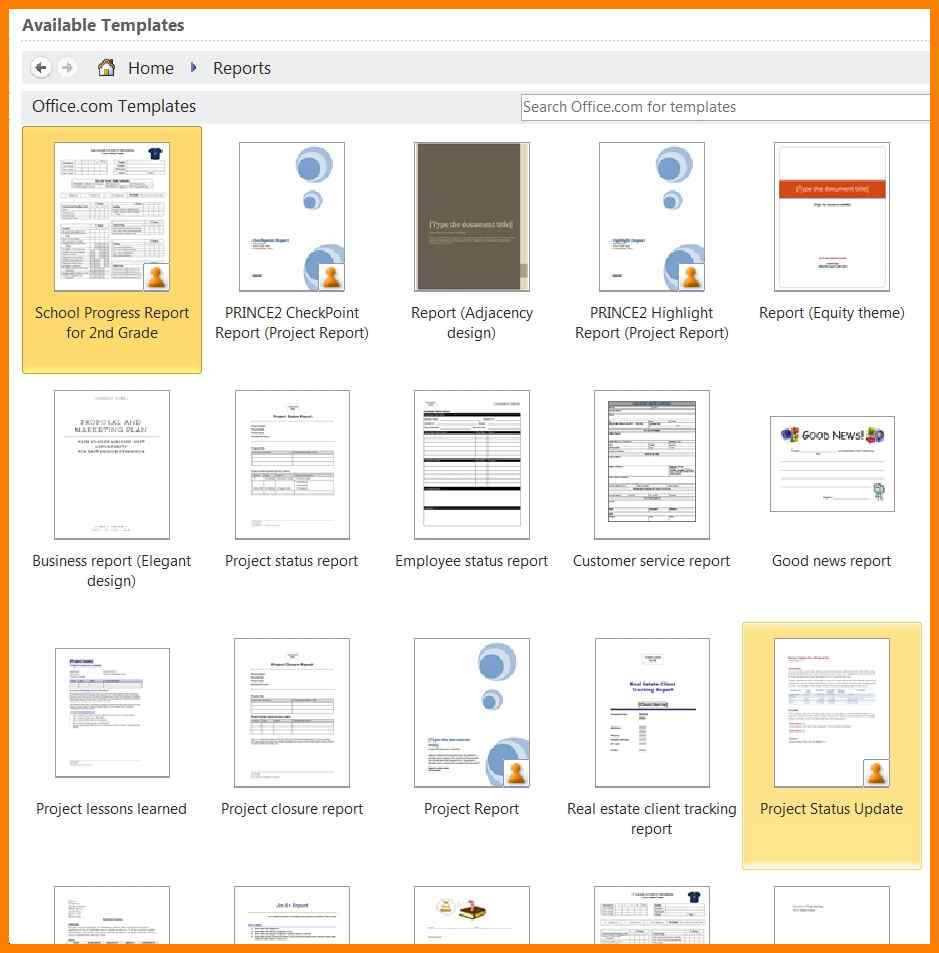
- Instead of choosing "Sample Templates," look at the section titled Office.com Templates.
- Here, you'll see a list of categories like "Agendas," "Brochures," "Business cards," "Calendars," "Invoices," and "Resumes & CVs." You can browse through these categories to find what you're looking for.
- Alternatively, you can use the search bar at the top of this section, labeled "Search Office.com for templates." This is the most efficient method if you know what you need. For example, typing "meeting minutes" or "project timeline" will yield highly relevant results.
Downloading and Opening an Online Template
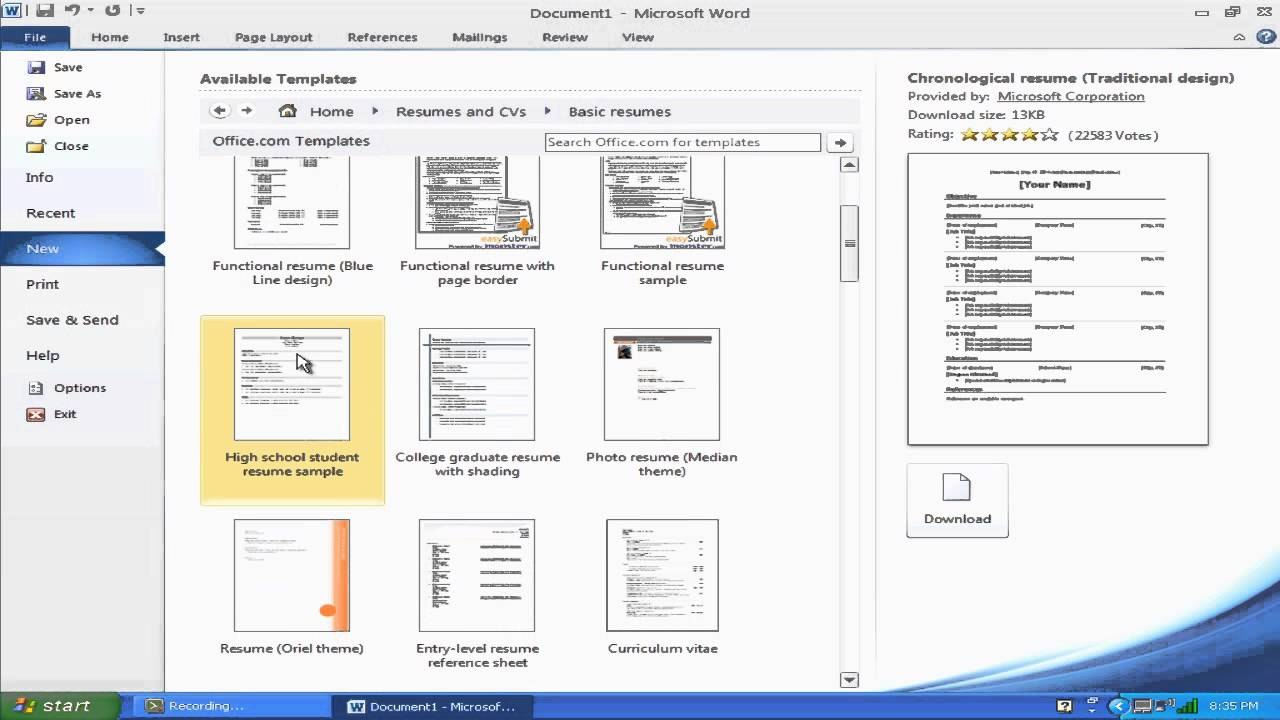
Once you find a template you want to use, either by browsing or searching, click on its thumbnail. A larger preview will appear on the right side of the screen. To use it, simply click the Download button located below the preview.
Word 2010 will then download the template file from the internet and automatically open a new document based on it. The experience is identical to using a sample template; you can immediately start replacing the placeholder text with your own information. This powerful integration makes it incredibly easy to find a professional design for any document without ever leaving the Word application.
Creating Your Own Custom Templates in Word 2010
While using pre-made templates is convenient, the true power of this feature is realized when you create your own custom templates. This allows you to standardize documents that are unique to your business, project, or personal needs, such as a custom letterhead, a weekly report format, or a specific project proposal structure.
Designing Your Template Document
The first step is to create the document exactly as you want the template to appear.
- Start with a new blank document or open an existing document that has the layout you want to save as a template.
- Set up all the static elements and formatting. This includes:
- Page Layout: Configure margins, page orientation (portrait/landscape), and paper size.
- Styles: Define your styles for Normal text, Heading 1, Heading 2, etc. This is crucial for ensuring consistency.
- Headers and Footers: Add your company logo, page numbers, document titles, or confidentiality notices.
- Boilerplate Text: Include any text that will be the same in every document created from this template, such as an introduction, a closing paragraph, or contact information.
- Placeholder Text: For areas that will change with each use, insert clear, instructional placeholder text like "[Enter Client Name Here]" or "[Insert Project Summary]".
Saving a Document as a Word Template (.dotx)
Once your document is perfectly designed, you need to save it correctly as a template file.
- Go to the File tab and select Save As.
- In the "Save As" dialog box, enter a descriptive name for your template in the "File name" field (e.g., "Company Memo Template").
- Next, click on the "Save as type" dropdown menu. By default, it will say "Word Document (.docx)". Scroll through the list and select Word Template (.dotx).
- Pay close attention to the save location. As soon as you select "Word Template (*.dotx)," Word will automatically change the folder path to your default Custom Office Templates folder. This is exactly what you want. Do not change this location. Saving it here ensures that your custom template will be easily accessible.
- Click the Save button.
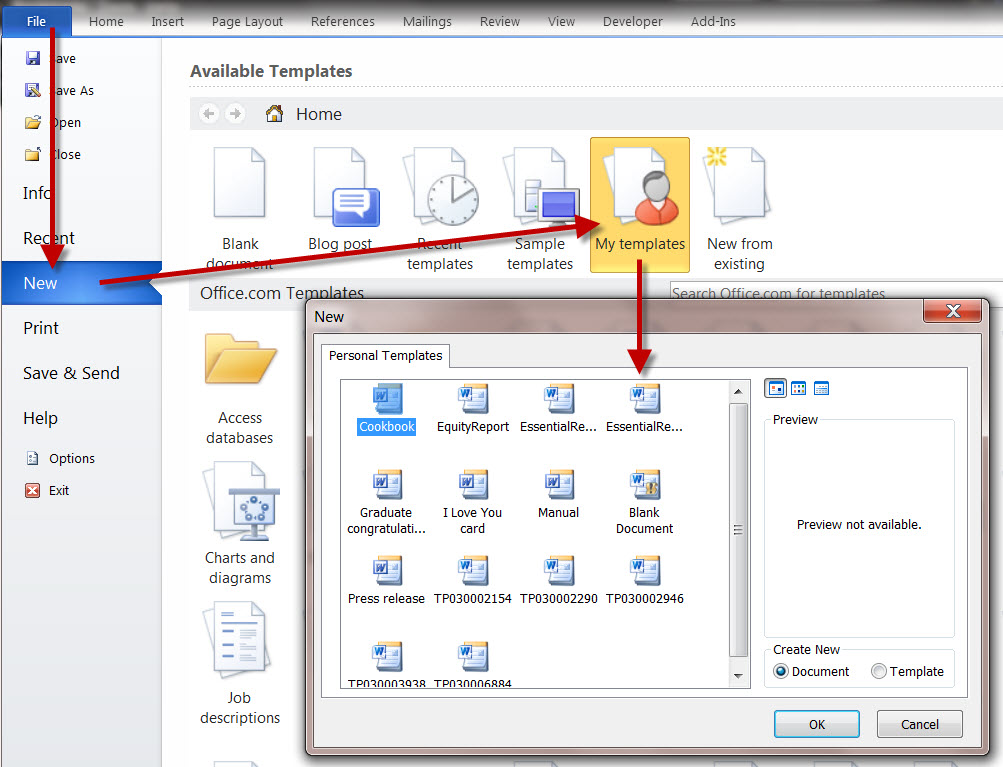
Now, to use your newly created template, go to File > New and click on My Templates. Your custom template will appear in the gallery, ready to be used just like any other template.
A Practical Guide on How To Use Templates In Word 2010 for Business
Applying the knowledge of how to use templates in Word 2010 can revolutionize business operations by enforcing brand consistency and improving efficiency across departments.
Standardizing Company Documents
For any organization, maintaining a consistent brand identity is paramount. Custom templates are the perfect tool for this. You can create official templates for:
* Letterheads: Ensure every external letter uses the correct logo, company address, and font.
* Memos: Standardize the format for internal communications with fields for "To," "From," "Date," and "Subject."
* Invoices: Create a professional invoice template with your company's banking details, payment terms, and a formatted table for line items.
* Reports: Design a template for monthly or quarterly reports that includes a title page, table of contents, and pre-styled headings.
By distributing these templates to all employees, you guarantee that every document produced reflects the company's professional standards.
Streamlining Project Management
Project managers can save a significant amount of administrative time by using templates for recurring project documents. Templates for project proposals, status reports, risk assessments, and meeting agendas ensure that all necessary information is captured consistently every time. For example, a meeting agenda template can include sections for attendees, action items from the previous meeting, and new discussion points, guiding the meeting's structure and improving productivity.
Modifying an Existing Template
Your needs may change over time, and you might find it necessary to update a custom template you've created. It's important to know how to edit the template file itself, rather than just the documents created from it.
Opening a Template for Editing
There is a specific way to open a template file for editing. If you simply double-click it, you will create a new document. To edit the template:
- Open Word 2010.
- Go to File > Open.
- Navigate to the Custom Office Templates folder where you saved your .dotx file. (The path is typically
C:\Users\[YourUsername]\AppData\Roaming\Microsoft\Templates). - Select your template file (e.g., "Company Memo Template.dotx") and click Open.
This action opens the actual template file, not an instance of it. You can tell you're in the template because the title bar will display the file name with the .dotx extension.
Making and Saving Changes
With the template file open, you can make any changes you need. You can update the company logo, change the address in the footer, modify the default font style, or add a new section to the boilerplate text.
Once you are finished with your modifications, simply save the file by clicking the Save icon or pressing Ctrl+S. The next time you or anyone else creates a new document based on this updated template, it will reflect all the changes you just made.
Conclusion
Mastering the use of templates in Word 2010 is a foundational skill that pays continuous dividends in efficiency and professionalism. By moving beyond the blank page and embracing a template-driven workflow, you can ensure consistency, reduce errors, and save a remarkable amount of time. Whether you are using the convenient built-in samples, downloading from the vast Office.com library, or investing the time to create your own custom templates, you are leveraging one of Word's most powerful features.
We've covered the complete process, from understanding the core concepts and accessing pre-made templates to the advanced techniques of creating, saving, and modifying your own custom designs. By applying these steps, you can standardize your personal and professional documents, ensuring every letter, report, and memo you create is perfectly formatted and ready for your content. Take control of your document creation process and let templates handle the repetitive work, freeing you to focus on your message.
0 Response to "How To Use Templates In Word 2010"
Posting Komentar